User Guide#
This guide explains how to use SACRO Viewer to review research outputs and manage the approval process for secure release.
Getting Started#
When you launch SACRO Viewer, you’ll be prompted to select a directory containing the outputs you wish to review. The application will automatically detect ACRO metadata and display the outputs for review.
Selecting Output Directory
Launch SACRO Viewer
A file dialog will appear asking you to choose a directory
Navigate to and select the folder containing your research outputs
Click “Select Folder” to load the outputs
If the directory contains ACRO-generated metadata (typically outputs.json), the viewer will use this to display detailed information about each output. If no ACRO metadata is found, the viewer will automatically generate metadata for all files in the directory, treating them as “custom” outputs requiring review.
Main Interface#
The SACRO Viewer interface consists of three main areas:
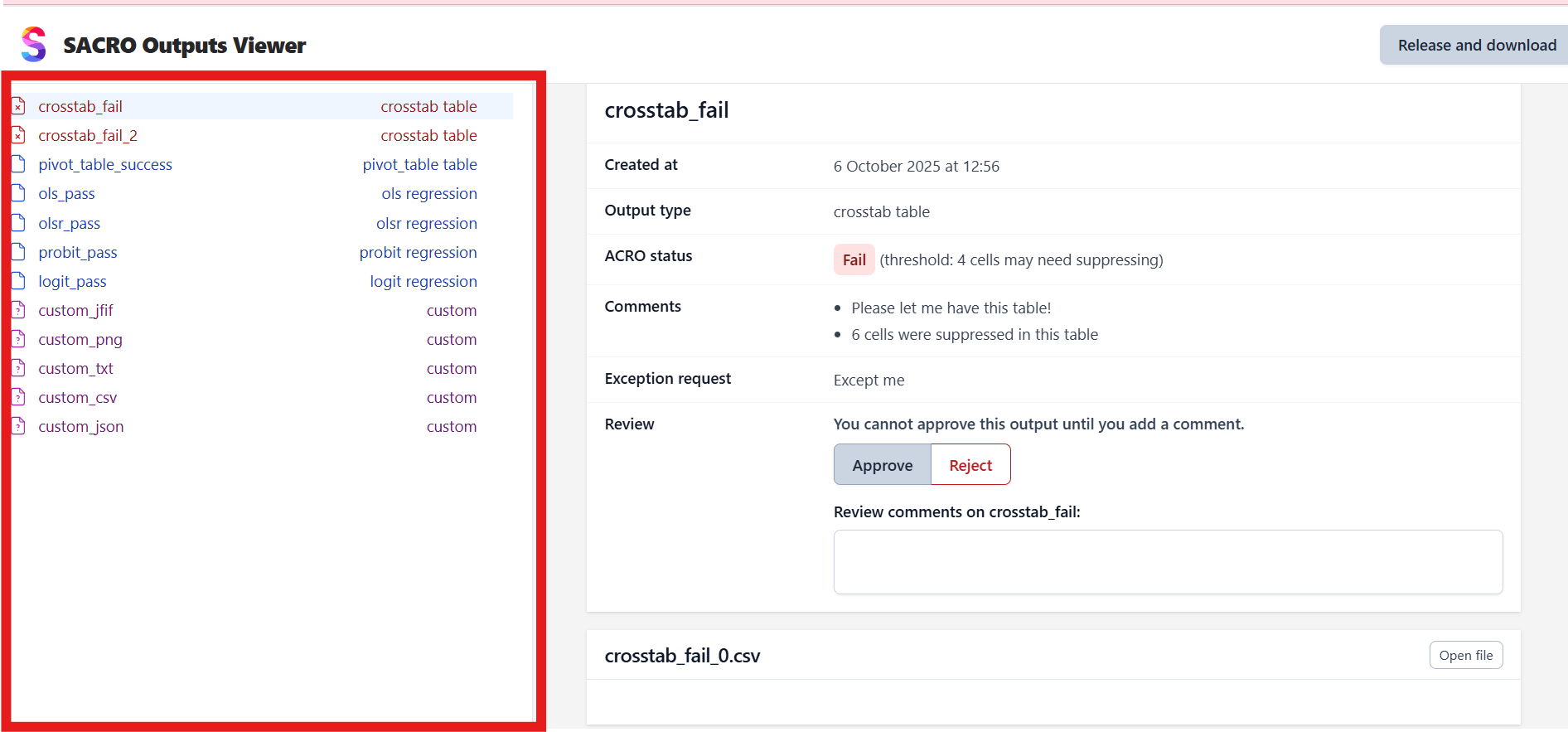
- Output List (Left Panel)
Shows all outputs in the selected directory with their names and types. Outputs are color-coded:
Red icons: Failed ACRO checks or outputs requiring attention
Blue icons: Passed ACRO checks or successful outputs
Gray icons: Custom outputs (non-ACRO files)
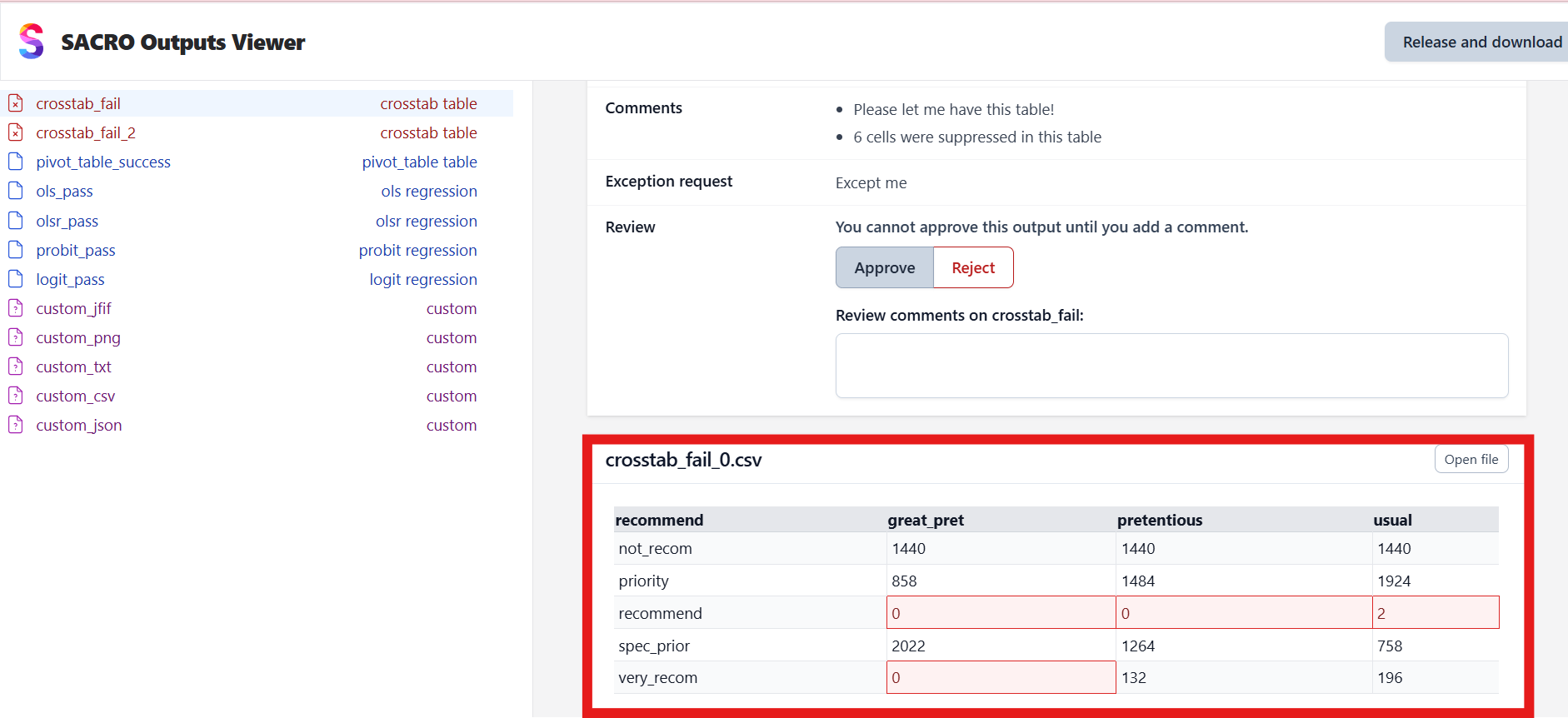
- File Viewer (Bottom Right)
Displays the contents of the selected output file. Supports various formats:
CSV files: Displayed as formatted tables with cell highlighting
Images: PNG, JFIF, and other image formats shown inline
Text files: Plain text with syntax highlighting
JSON files: Formatted JSON with proper indentation
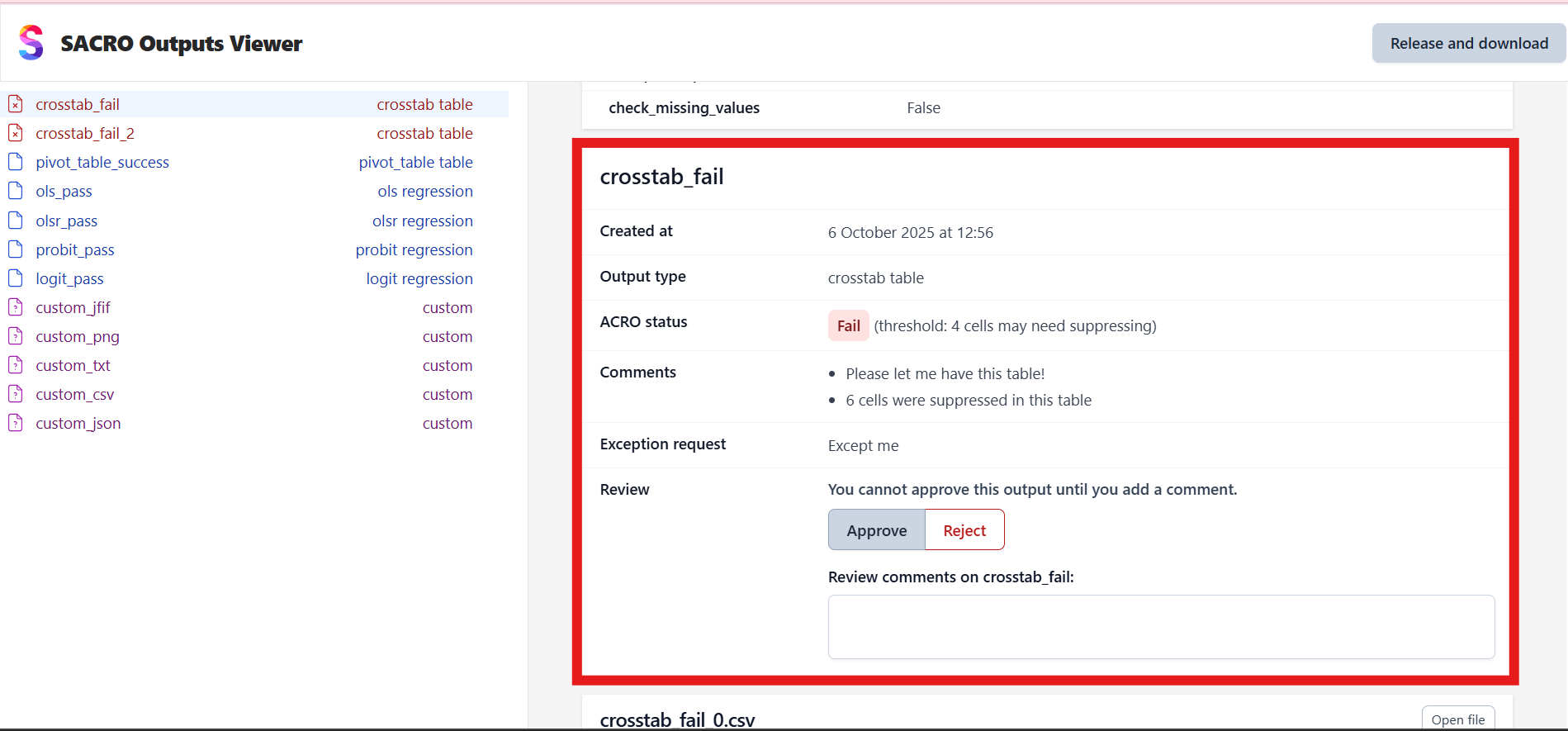
- Review Panel (Top Right)
Contains all information needed for making approval decisions:
ACRO Status: Shows pass/fail status and any warnings
Comments: Researcher-provided comments and justifications
Exception Request: Any special requests from the researcher
Review Section: Your approval decision and comments
Making Review Decisions#
For each output, you need to make an approval decision based on the ACRO analysis, researcher comments, and file contents.
Review Process
Select an output from the left panel to view its details
Examine the ACRO status - this shows the automated privacy assessment
Read researcher comments to understand the context and any special circumstances
View the file contents to verify what is being requested for release
Make your decision using the Approve/Reject buttons
Add review comments explaining your decision (optional but recommended)
ACRO Status Indicators
Pass: ACRO determined the output is safe for release
Fail: ACRO identified potential disclosure risks (e.g., “threshold: 4 cells may need suppressing”)
Review: Manual review required due to uncertainty or special circumstances
Approval Guidelines
Approve outputs that pass ACRO checks and have valid researcher justifications
Reject outputs with clear disclosure risks or insufficient justification
Consider carefully outputs that failed ACRO checks but have researcher exception requests
File Types and Display#
SACRO Viewer handles various output file types commonly produced in research:
- Statistical Tables (CSV)
Displayed as formatted tables with proper column alignment
Cells flagged by ACRO for potential disclosure risks are highlighted
Cell coordinates are shown for reference in ACRO reports
- Images and Plots
PNG, JFIF, and other image formats displayed inline
Plots and charts can be viewed at full resolution
“Open file” button available for viewing in external applications
- Text and Code Files
Plain text files displayed with appropriate formatting
Code files shown with syntax highlighting where possible
Large files may be truncated for performance
- JSON and Metadata
JSON files displayed with proper formatting and indentation
ACRO metadata files show the complete analysis results
Nested structures are clearly presented
Completing the Review#
Once you have reviewed all outputs and made approval decisions, you can generate the final release package.
Release Process
Review all outputs - ensure every item has an approval decision
Click “Release and download” button (appears when all outputs are reviewed)
Add final comments about the overall review in the dialog that appears
Confirm the release to generate the approved outputs package
Release Package Contents
The generated ZIP file contains:
Approved output files - only files you approved for release
Release metadata - summary of approval decisions and comments
Audit information - reviewer details and timestamps
Checksums - file integrity verification data
Audit Trail
SACRO Viewer maintains a complete audit trail including:
Individual approval/rejection decisions for each output
Reviewer comments and justifications
Timestamps of all review actions
File checksums for integrity verification
Release package metadata
Working with Different Output Types#
- ACRO-Generated Outputs
These outputs include comprehensive metadata about statistical disclosure control checks, researcher comments, and automated risk assessments. Use this information to make informed decisions about release approval.
- Custom Outputs
Files without ACRO metadata are treated as custom outputs requiring manual review. These appear with generic metadata and require careful examination of file contents to assess disclosure risks.
- Mixed Directories
Directories containing both ACRO and non-ACRO outputs are handled seamlessly. The viewer will use ACRO metadata where available and generate custom metadata for other files.
Best Practices#
- Review Workflow
Start with outputs that passed ACRO checks - these are typically safe to approve
Pay special attention to failed outputs and exception requests
Document your reasoning in review comments for audit purposes
Verify file contents match the researcher’s description
- Security Considerations
Always verify file checksums match the expected values
Be cautious with outputs containing small cell counts or potentially identifying information
Consider the cumulative disclosure risk across multiple related outputs
When in doubt, err on the side of caution and reject questionable outputs
- Efficiency Tips
Use keyboard shortcuts where available for faster navigation
Group similar outputs for batch review when appropriate
Keep researcher contact information handy for clarification requests
Maintain consistent approval criteria across similar output types